Stop the "Copy-Paste Nightmare": The Visual Way to Extract Tables From PDF
Let’s be honest: getting data from a PDF file into an Excel spreadsheet is a major pain. We’ve all been there—staring at a locked PDF document, knowing we need that specific table, and resorting to the soul-crushing method of manually copying and pasting cells.
It’s slow, it’s error-prone, and frankly, it’s not how you should be spending your time.
If you want to automate the conversion without complex scripts or unreadable output, there’s a visual method that puts you in control. With PerfectConvertly, you don’t just cross your fingers and hope the AI reads the table correctly—you draw exactly what you want to extract.
Follow this step-by-step guide to turn a static PDF into a clean, usable dataset in seconds.
How to Perfectly Extract Data from PDF to CSV
Step 1: Navigate to the Tool
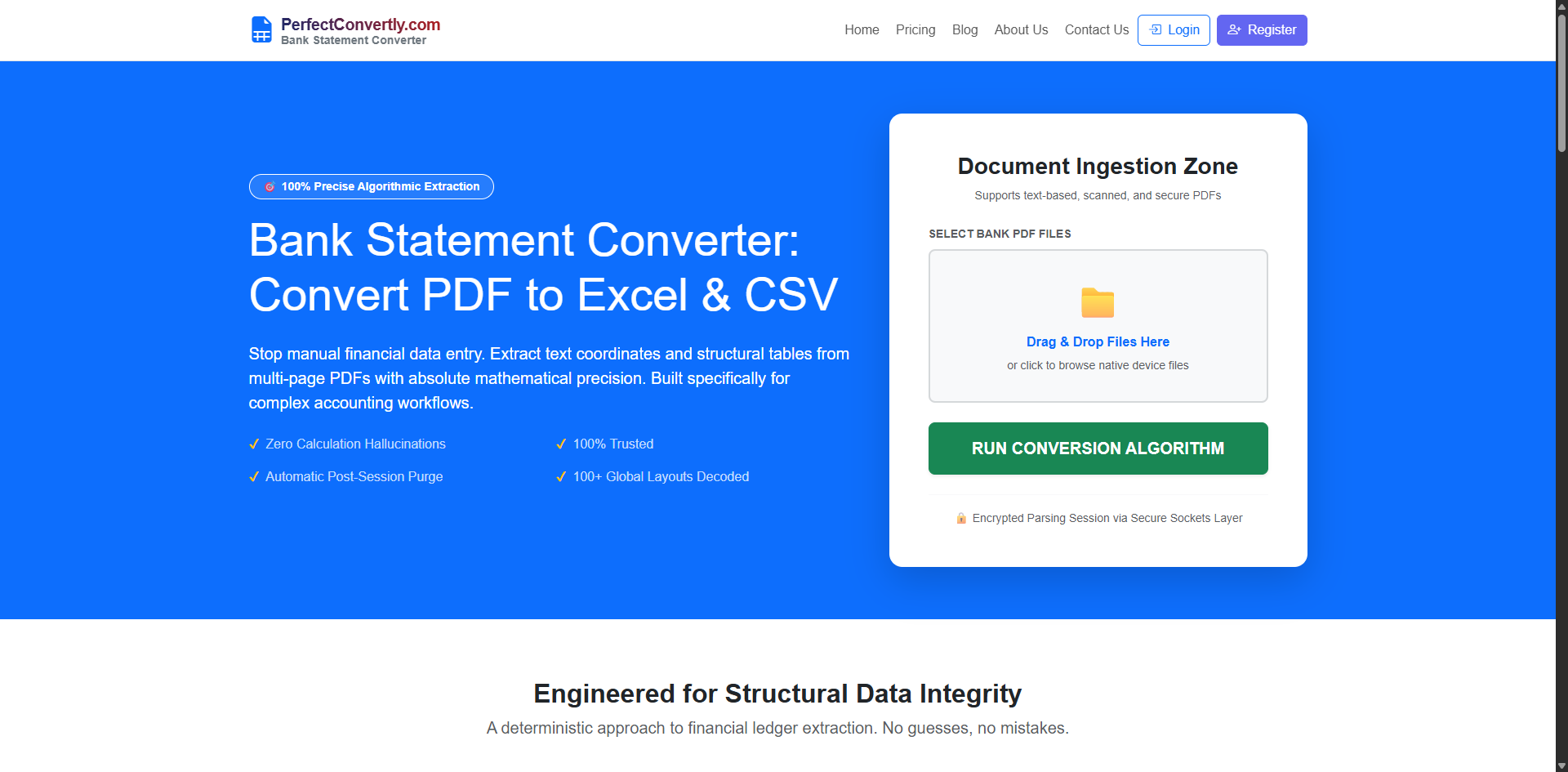
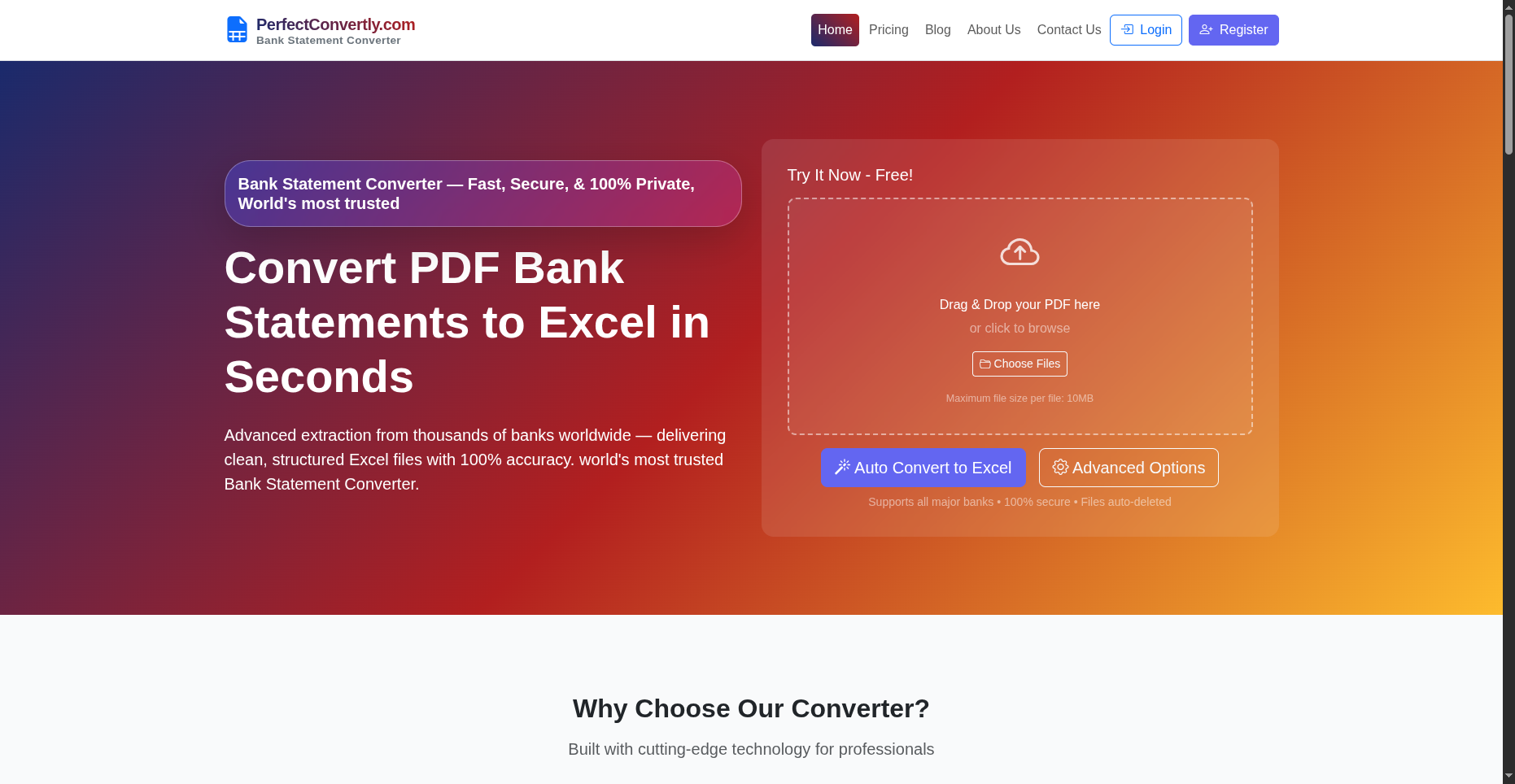
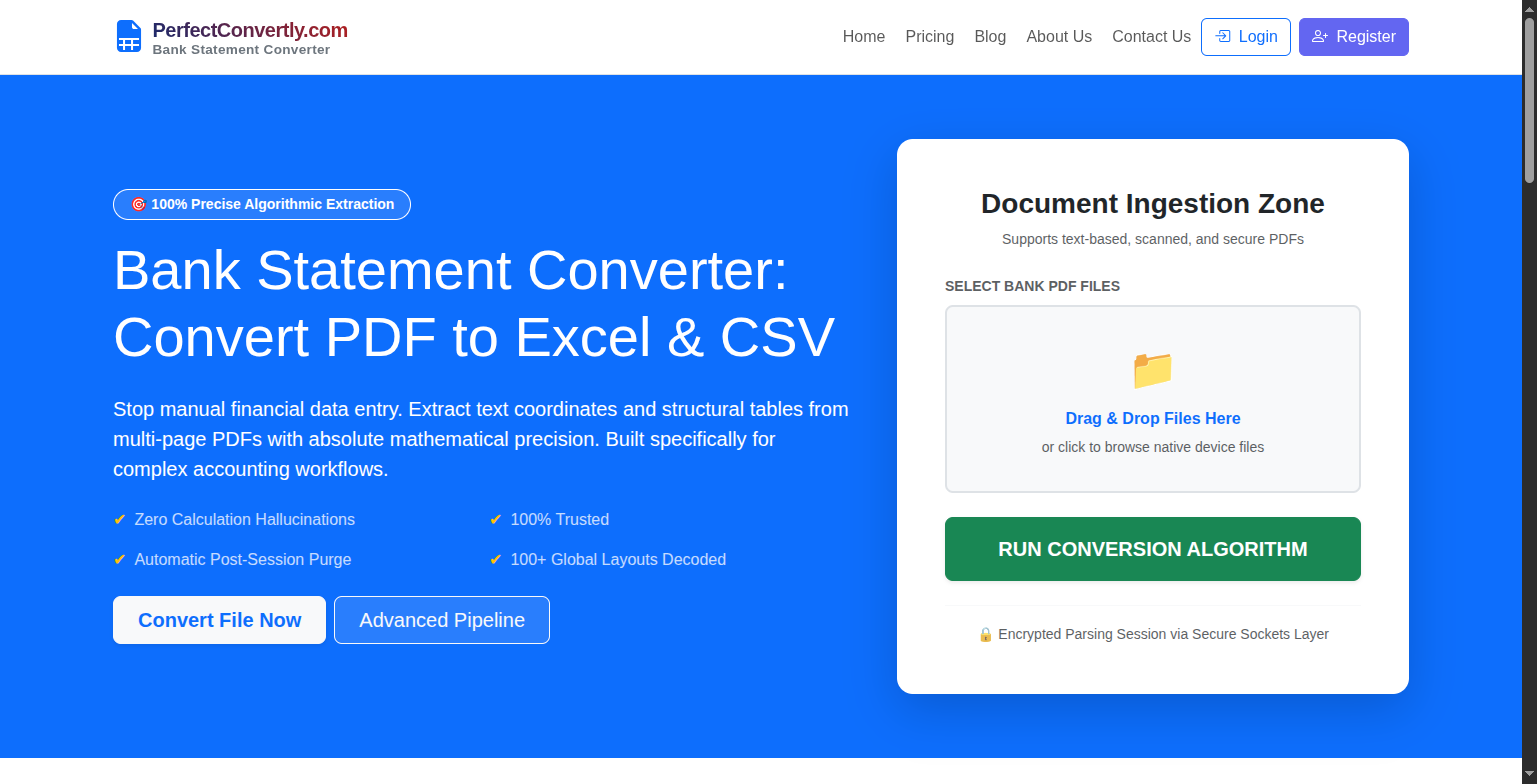
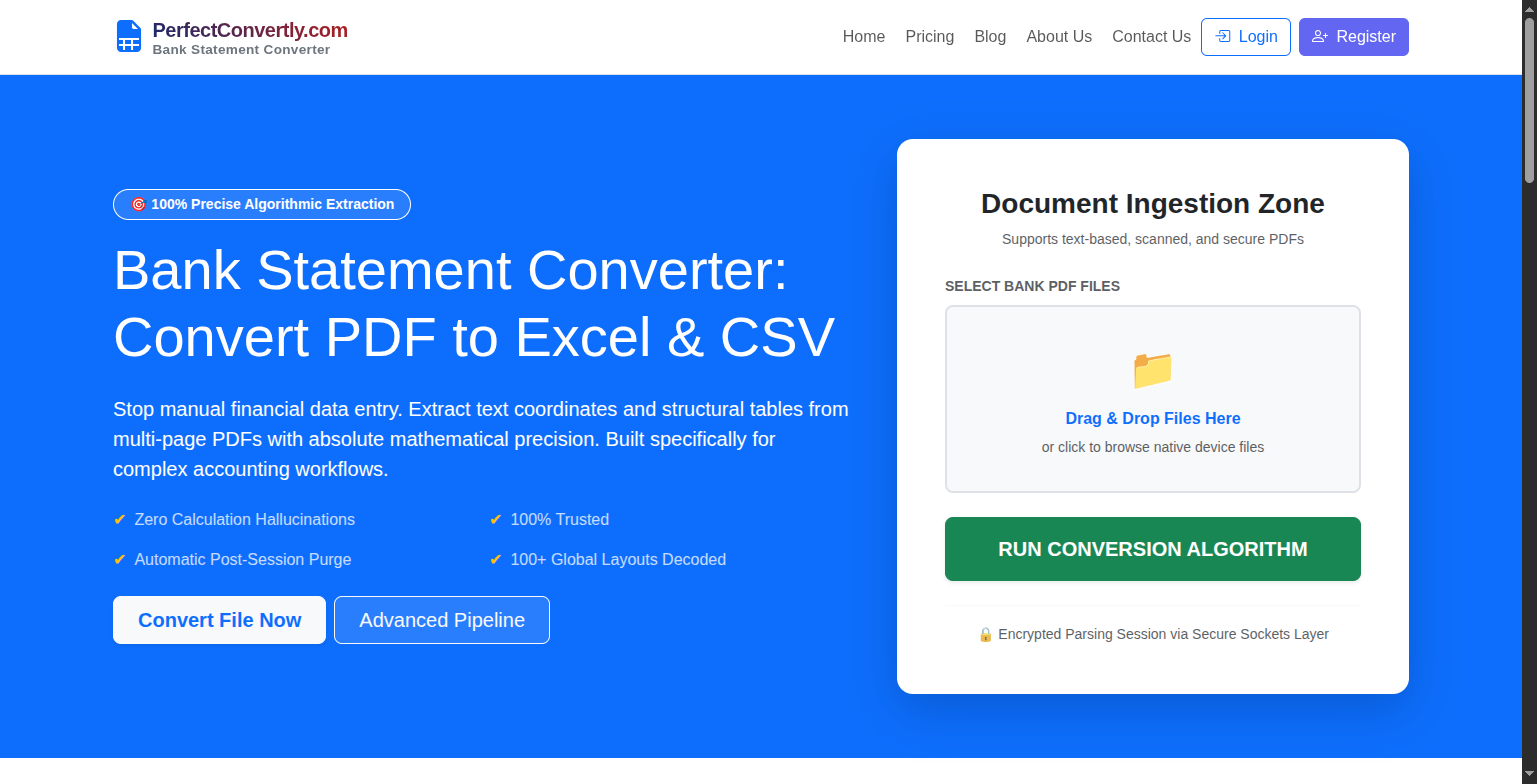
Go to PerfectConvertly.com. You don’t need to download software or sign up for a trial. The tool is web-based and ready to work.
Step 2: Upload Your Source File
Click the "Convert a PDF" button. A file browser will open. Select the PDF document containing the table or text data you want to rescue. This works great for scanned invoices, financial reports, or research data.
Step 3: Let the Renderer Work
Wait for the upload to finish. The system is processing the file to render a high-definition visual preview for you. This usually takes just a few seconds.
Step 4: Enter the Inspection Mode
Once the upload is complete, press the "Inspect" button. You will be taken to a page where you can see your PDF displayed as a flat image.
Step 5: Draw Your Selection (The Magic Step)
Instead of extracting the whole page into a messy, jumbled spreadsheet, you’re going to tell the AI exactly where the data lives.
- Drag a rectangle region directly onto the page over your first table.
- You should see an overlay selection box appearing over your data.
- Keep dragging regions until you’ve highlighted all the data columns and rows you want to extract. (You can select multiple separate areas on the same page.)
Visual Selection Example: A red bounding box highlights a specific table within an invoice, ignoring the header and footer noise.
Step 6: Export Your Selections
When you’re happy with the selected regions, click the "Export Selections" button. The backend AI analyzes the precise pixels within your drawn boxes and converts the image back into structured text and numbers.
Step 7: Review & Download
You should now see a preview page displaying your extracted data in a neat, tabular format. Does it look correct?
Press the "Download" button. A CSV file (compatible with Microsoft Excel, Google Sheets, and Apple Numbers) will start downloading immediately.
Why This Beats Traditional PDF Converters
- No "Garbage" Data: You aren’t converting the whole page, so you don’t get stray headers, footers, or random text in your Excel file. You get only the tables you select.
- Handles Scanned Images: Because it uses visual bounding boxes, it works even if your PDF is a scanned piece of paper, not a text-based file.
- Speed: It’s drastically faster than manually typing out rows and columns.
That’s It!
You’ve successfully moved data from a locked PDF to an editable spreadsheet. If you have unique requirements, complex multi-page documents, or specific questions, feel free to reach out via email. We’re happy to help you fine-tune your extraction workflow.
Comments (0)
No comments yet. Be the first to comment!
Leave a Comment