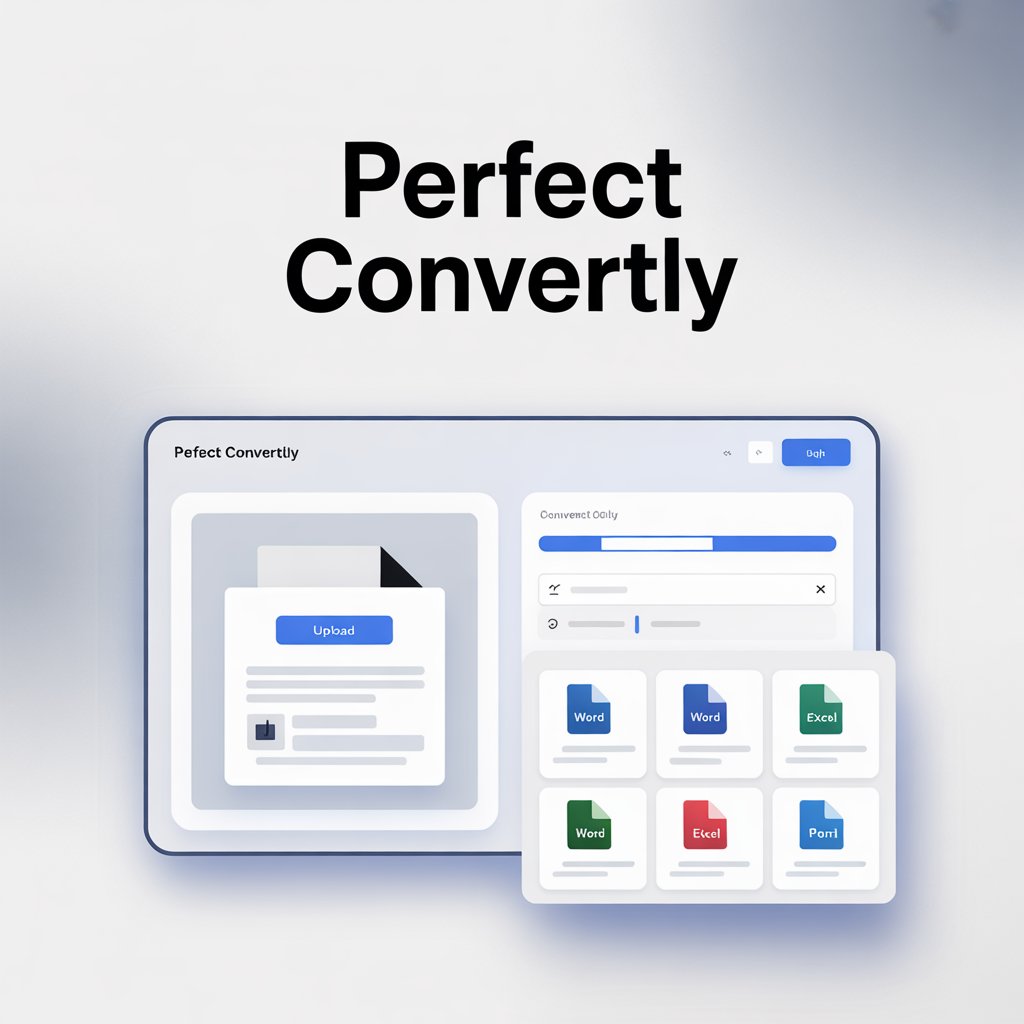
How to Convert Bank Statements to Excel Effortlessly: The Ultimate Guide
Managing personal or business finances often means wrestling with monthly bank statements. These documents land in your inbox or mailbox as PDFs, paper scans, or even CSV files that don’t quite fit your accounting workflow. Manually typing rows of transactions into a spreadsheet is tedious, error‑prone, and a time thief. A bank statement to Excel converter solves this problem instantly. In this comprehensive guide, you’ll learn what a bank statement converter is, why you need one, how it works, the top features to look for, and how PerfectConvertly.com makes the entire process smooth, accurate, and secure.
Table of Contents
What Is a Bank Statement to Excel Converter?
Why You Need to Convert Bank Statements to Excel
Common Bank Statement Formats and Their Challenges
How a Bank Statement to Excel Converter Works
Manual Extraction vs Automated Conversion
Key Features to Look for in a Converter Tool
Step‑by‑Step: Convert Your Bank Statement Using PerfectConvertly
Use Cases Across Industries
Security and Privacy: Are Your Financial Data Safe?
Pro Tips for Cleaner Excel Outputs
Frequently Asked Questions (FAQ)
Conclusion: Transform Your Financial Workflow Today
What Is a Bank Statement to Excel Converter?
A bank statement to Excel converter is a software tool or online service that extracts transaction data from bank statement files—most commonly PDFs—and transforms them into an editable, structured Microsoft Excel spreadsheet (or CSV). Instead of dealing with a static image of your transaction history, you get a fully sortable, filterable table with columns for date, description, amount, balance, and often additional metadata like transaction category or check numbers.
Modern converters leverage optical character recognition (OCR) for scanned documents and intelligent parsing algorithms for text‑based PDFs. They recognize table structures, line items, and even multi‑page statements, delivering near‑perfect accuracy within seconds. Whether your statement comes from Chase, Bank of America, HSBC, or a local credit union, a robust converter handles diverse layouts without manual mapping.
For individuals and businesses alike, the goal is the same: eliminate manual data entry, reduce human error, and free up time for analysis, budgeting, and financial decision‑making. PerfectConvertly.com offers exactly such a tool—fast, accurate, and accessible right from your browser.
Why You Need to Convert Bank Statements to Excel
You might wonder, “Why not just keep the PDF?” Here’s why converting your bank statement to Excel is a game‑changer:
Data analysis and budgeting: Excel lets you pivot, sum, filter, and chart your spending habits. You can instantly see how much you spent on dining out, subscriptions, or supplies over any period.
Accounting and reconciliation: Importing transactions into QuickBooks, Xero, or your custom ERP requires structured data. Excel acts as the universal bridge.
Tax preparation: Come tax season, having all your deductible expenses neatly categorized in a spreadsheet saves hours and reduces CPA costs.
Audit trails and archiving: Searchable Excel files are far easier to audit than a stack of PDFs.
Data merging: Combine multiple account statements into one master file to get a holistic view of your finances.
Error detection: Automated conversion often flags missing or duplicate transactions that you might overlook during manual review.
An efficient bank statement to Excel converter thus transforms a reactive task (“I need to check what I spent last month”) into a proactive habit.
Common Bank Statement Formats and Their Challenges
Bank statements come in several formats, each with its own quirks:
| Format | Typical Source | Challenges |
|---|---|---|
| Text‑based PDF | Email downloads, online banking | Tables may span multiple pages; headers and footers interfere with extraction; fonts vary. |
| Scanned/image PDF | Paper statements, older records | Requires OCR; image quality affects accuracy; handwritten notes add noise. |
| CSV / Excel | Some online banking exports | Often lacks consistent formatting; dates may be in non‑standard formats; categories missing. |
| HTML | Web‑based banking portal | Contains extraneous web elements, needs cleaning before use. |
| Multi‑statement PDF | Year‑end summaries | Contains multiple account periods in one file; must be split and processed individually. |
A sophisticated bank statement PDF to Excel converter tackles these challenges without breaking a sweat. PerfectConvertly’s engine automatically detects the statement’s structure, removes headers/footers, merges broken rows, and outputs a clean table.
How a Bank Statement to Excel Converter Works
Understanding the technology builds trust. Here’s a simplified breakdown of the conversion process:
File ingestion: You upload your statement (PDF, image, or other supported format) to the platform. PerfectConvertly supports batch uploads, so you can convert multiple statements in one go.
Pre‑processing: The tool enhances the document for better readability—deskews scanned pages, increases contrast, and removes background noise.
Data detection: For text PDFs, the parser identifies table boundaries by analyzing text coordinates and whitespace. For scanned files, advanced OCR (like Tesseract‑based or AI‑powered engines) extracts text and its position.
Table recognition & reconstruction: The system groups text fragments into rows and columns. It handles multi‑line entries (e.g., a transaction description that wraps to a second line) and consolidates them.
Field mapping: The converter intelligently labels columns—Date, Description, Debit, Credit, Balance. It normalizes date formats, removes currency symbols from numbers, and distinguishes debits from credits even if a single “Amount” column uses positive/negative signs.
Validation: A quality‑check layer flags potential errors, such as misaligned rows or unrecognized characters. Some converters, including PerfectConvertly, let you review and adjust before final download.
Export: You download the result as an Excel (.xlsx) or CSV file, ready for immediate use.
The entire sequence takes mere seconds, even for 20‑page statements, thanks to cloud‑based processing and proprietary AI models trained on thousands of real‑world bank layouts.
Manual Extraction vs Automated Conversion
Still on the fence? Let’s compare the two approaches head‑to‑head.
| Factor | Manual Typing | Automated Bank Statement to Excel Converter |
|---|---|---|
| Time | 10–30 minutes per statement | 10–30 seconds per statement |
| Accuracy | Prone to typos, skipped rows, misreading | 99%+ accuracy with validation |
| Scalability | Painful for multiple statements or years of history | Batch‑process hundreds in minutes |
| Cost | “Free” in money, expensive in labor | Minimal subscription/free tier; ROI in hours saved |
| Data consistency | Dependent on operator’s attention | Consistent formatting every time |
| Stress level | High—monotonous and frustrating | Low—automated, simple, quick |
For a business owner or accountant processing client statements, the automated route isn’t a luxury; it’s a necessity. Even for personal finance enthusiasts, the time saved compounds month after month.
Key Features to Look for in a Converter Tool
Not all bank statement converters are created equal. When evaluating options—especially PerfectConvertly.com—keep these must‑have features in mind:
Multi‑bank compatibility: The tool should work with statements from major banks, credit unions, and international formats without manual template setup.
OCR capability: Essential for scanned or image‑based PDFs. Look for AI‑enhanced OCR that improves with use.
Batch processing: Upload and convert multiple statements simultaneously; receive separate Excel files or a combined dataset.
Table detection accuracy: The converter should seamlessly handle multi‑page tables, merged cells, and varying column orders.
Data cleaning options: Automatic removal of blank rows, recognition and extraction of “Opening Balance” and “Closing Balance,” and flagging of suspicious entries.
Format preservation: The output Excel should mirror the original columns logically, not jumble data.
Security and privacy: End‑to‑end encryption, file auto‑deletion after conversion, and GDPR compliance are non‑negotiable.
Export flexibility: At minimum .xlsx and .csv; some tools also export directly to Google Sheets.
User experience: A clean, intuitive interface that doesn’t require a manual. Drag‑and‑drop uploads, preview mode, and easy download buttons matter.
Affordable pricing: Transparent plans with a free tier for occasional users, and pro options for heavy use.
PerfectConvertly checks all these boxes, making it the go‑to bank statement to Excel converter for thousands of users worldwide.
Step‑by‑Step: Convert Your Bank Statement Using PerfectConvertly
Ready to turn your PDF bank statement into an Excel spreadsheet? Here’s exactly how to do it on PerfectConvertly:
Visit the Tool: Go to PerfectConvertly.com/bank-statement-to-excel (hypothetical URL structure; the platform’s converter is easily accessible from the homepage).
Upload Your Statement: Click the upload area or drag and drop your file. You can select a PDF, JPG, PNG, or even a zip containing multiple statements.
Select Conversion Preferences (if available): Choose whether you want to include balance columns, detect transaction types automatically, or merge multi‑page tables. The default settings work brilliantly for most users.
Start Conversion: Hit the “Convert” button. PerfectConvertly’s engine processes the file in the cloud. A progress bar shows real‑time status.
Review the Output: Once complete, an interactive preview displays the extracted table. Check that dates are correct, descriptions align, and amounts are in the right columns. If you spot an issue, you can often manually adjust column mapping or re‑run OCR with different settings.
Download or Export: Click “Download as Excel” to get the .xlsx file. Alternatively, export to CSV for use with accounting software. Your original file remains private, and the converted data is never stored longer than necessary.
Integrate with Your Workflow: Open the Excel file, add your own formulas, pivot tables, or import it directly into QuickBooks. You’re done!
The entire process is designed to be frictionless, even for non‑technical users.
Use Cases Across Industries
A bank statement to Excel converter isn’t just for personal budgeting. Here’s how different professionals leverage it:
Accountants & Bookkeepers: Automate monthly client statement imports, speed up reconciliation, and prepare financial reports without manual typing.
Small Business Owners: Track cash flow, categorize expenses for tax deductions, and monitor multiple business accounts from one dashboard.
Mortgage Brokers & Loan Officers: Quickly analyze an applicant’s bank statements to verify income, recurring payments, and spending patterns. PerfectConvertly’s accuracy reduces underwriting time.
Auditors & Compliance Teams: Extract transaction data from years of statements to perform forensic analysis or compliance checks.
Fintech & Personal Finance Apps: Use the Excel/CSV output as a clean data pipeline into apps like Mint, YNAB, or custom Python/R analysis.
Legal Professionals: Convert client financial disclosures into searchable spreadsheets for divorce settlements, fraud investigations, or estate planning.
E‑commerce Sellers: Reconcile payment gateway payouts with bank deposits by merging converted statements and sales reports.
In every scenario, the converter cuts manual labor by up to 95% and improves data integrity.
Security and Privacy: Are Your Financial Data Safe?
Uploading bank statements to a web‑based tool naturally raises security concerns. Here’s how PerfectConvertly addresses them:
Encryption in transit and at rest: All file transfers use TLS 1.3 encryption. Temporary storage employs AES‑256 encryption.
Automatic file deletion: Converted files and source documents are permanently purged from the server within a short timeframe (usually 1–2 hours), or immediately upon user request.
No human access: Conversion is fully automated; no employee ever views your statements.
GDPR / CCPA compliant: The platform adheres to strict data protection regulations, ensuring your data sovereignty is respected.
Optional local processing: For highly sensitive environments, inquire about on‑premise solutions or desktop versions that process files entirely on your computer.
Always verify a converter’s privacy policy and avoid tools that require you to email statements or share login credentials. PerfectConvertly’s transparent security model has earned the trust of enterprises and individuals alike.
Pro Tips for Cleaner Excel Outputs
Maximize the accuracy and usability of your converted bank statements with these expert tips:
Use high‑resolution scans: If you’re dealing with paper statements, scan at 300 DPI or higher. Avoid shadows, wrinkles, and staple marks.
Crop out unnecessary borders: Remove ads, perforated edges, or unrelated promotional content before uploading, if your statement includes them.
Rotate pages correctly: Ensure all text is upright. PerfectConvertly can handle slight skews, but fully upside‑down pages may confuse OCR.
Stick to one statement per file: While batch processing is supported, try to upload individual month‑wise statements for the cleanest result. Some converters can split a year‑end summary, but it’s safer to separate them first.
Check for password protection: Remove PDF passwords before upload, or use the tool’s built‑in unlock feature if available.
Leverage post‑processing in Excel: After download, use Excel’s “Text to Columns” if dates appear merged, and apply consistent formatting with the Format Painter.
Create a template: Once you have a clean Excel output, save it as a template and map your conversion results into it each month for consistent reporting.
These habits ensure that every conversion is a one‑click success.
Frequently Asked Questions (FAQ)
Q1: Is the bank statement to Excel converter free?
A: PerfectConvertly offers a generous free tier that allows you to convert a limited number of pages per month without charge. For heavy usage, affordable subscription plans unlock unlimited conversions and advanced features.
Q2: Can I convert a hand‑filled paper bank statement?
A: Yes, as long as the handwriting is legible and the scan quality is good. Modern AI‑based OCR can handle many handwriting styles, though results are best with printed statements.
Q3: Does it work with non‑English bank statements?
A: Absolutely. The converter supports multiple languages and recognizes currency symbols from around the world—dollars, euros, pounds, yen, rupees, and more.
Q4: How does the tool handle credit card statements?
A: Credit card statements follow similar table structures. PerfectConvertly treats them identically, accurately extracting transactions, payments, and fees.
Q5: What if my statement has missing or merged columns?
A: The preview and manual correction feature allows you to adjust column mappings if the automatic detection misses something. In most cases, the AI gets it right on the first try.
Q6: Can I convert directly to Google Sheets?
A: Currently, the primary output is Excel (.xlsx) and CSV. You can then upload the CSV or Excel file to Google Sheets with a couple of clicks.
Q7: Are my bank login credentials ever needed?
A: No. The converter works with files you provide. Never share your online banking username or password with any third‑party tool. PerfectConvertly never asks for them.
Q8: Is there an API for integrating this into my own software?
A: Yes, PerfectConvertly offers a developer‑friendly API for bulk and automated conversion workflows. Check the website for documentation.
Conclusion: Transform Your Financial Workflow Today
Manually entering data from a bank statement to Excel is an outdated practice that robs you of time and invites costly mistakes. With a powerful, secure bank statement to Excel converter like the one at PerfectConvertly.com, you can convert any statement—PDF, scanned image, or poorly formatted export—into a pristine Excel file in seconds.
From personal finance tracking to enterprise‑grade accounting, the benefits are undeniable: faster reporting, better accuracy, effortless reconciliation, and more time to focus on decisions that grow your wealth or business. The tool’s intelligent parsing, robust OCR, batch processing, and ironclad security put you back in control of your financial data.
Don’t let another statement pile up. Visit PerfectConvertly today, upload your first file, and experience the freedom of instant, accurate conversion. Your future self—and your accountant—will thank you.
Ready to simplify your financial data? Try the bank statement to Excel converter now at PerfectConvertly.com and get your first conversions free.


Comments (0)
No comments yet. Be the first to comment!
Leave a Comment